Skip to content


12 Great Ubuntu Applications

Ubuntu comes packed with some great applications but still there are some other applications that are extremelly useful. These are my personal favorite Ubuntu applications that do not come pre installed, at least with Ubuntu 8.10, with no particular order

1. Checkgmail

Do you miss the email notifications from gtalk in Windows?, Checkgmail is even better!. This program adds a small icon to your taskbar and constantly checks for incoming email. When email arrives, you see a popup with the emails and some options. It is fast since you do not need to open a web browser to read the emails. Also, it has a very convenient option that allows you to mark all your emails as read in just one click.
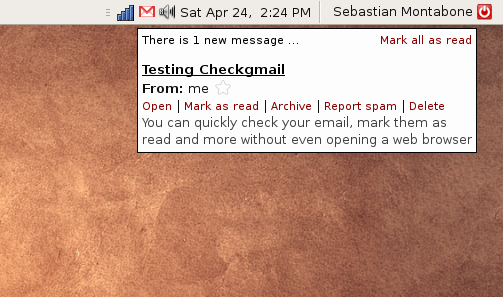
You can install it by running the following code in the command line:

sudo apt-get install checkgmail

2. Filezilla

Filezilla is a complete FTP solution. It has a very simple to use interface, it works really good and it is free. If you need to transfer files into your server, webhost, etc, this software can help you. It has many other features as well, such as SFTP.
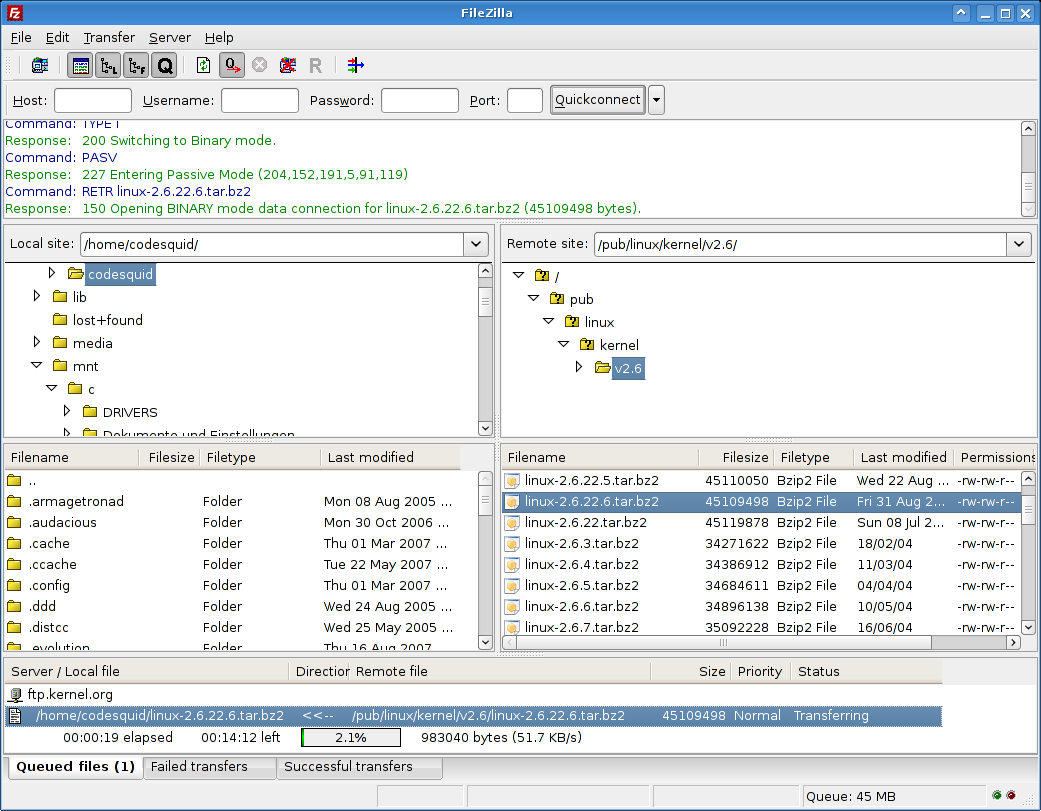
You can install Filezilla by just running this code:

sudo apt-get install filezilla

3. Netbeans

If you are a programmer, you may need an IDE. Maybe you program in many different languages, so you may need a lot of different IDEs. With Netbeans, you can program for Java, Java ME, C/C++, Javascript, PHP, Python, Ruby, among others. Just install the basic Netbeans installation and then add the plug ins for your language of choice.
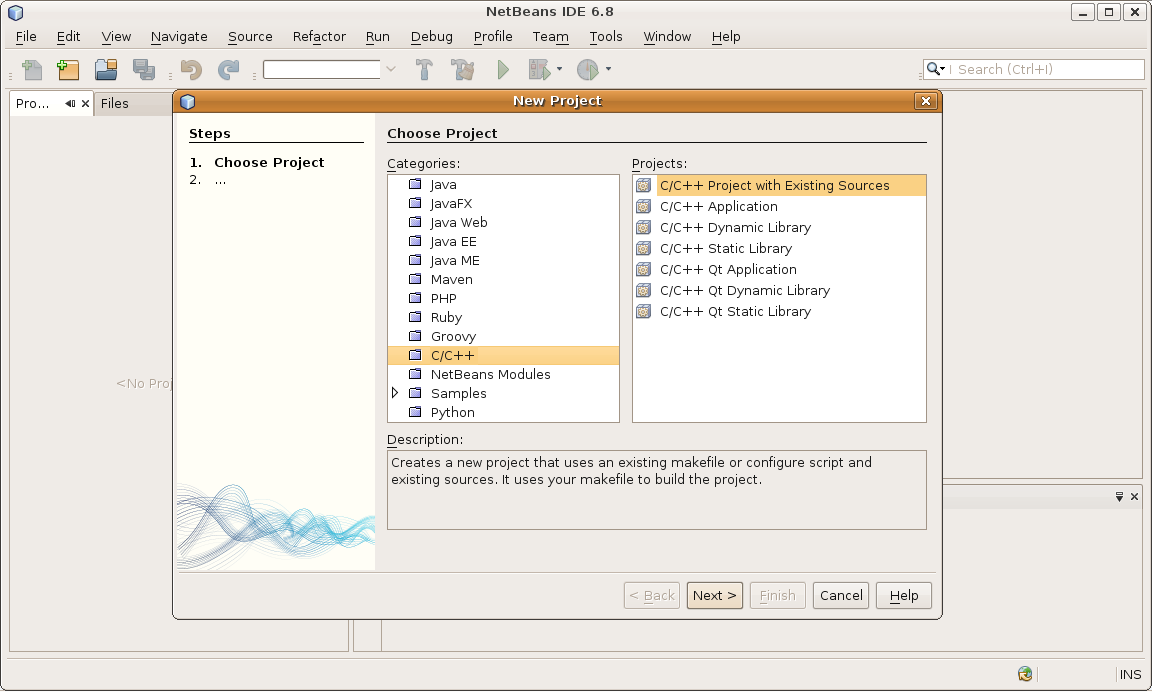
sudo apt-get install netbeans

4. Inkscape

This software allows you to create and edit vectorial images. This type of images have the main advantage that they can be resized to any size without loosing their details. It is mostly used for creating diagrams, line art, cartoons, etc.
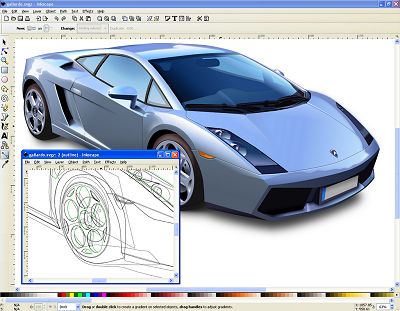
You can get it by running:

sudo apt-get install inkscape

5. Scribus

This software allows you to make professional looking documents such as brochures, magazines, etc.
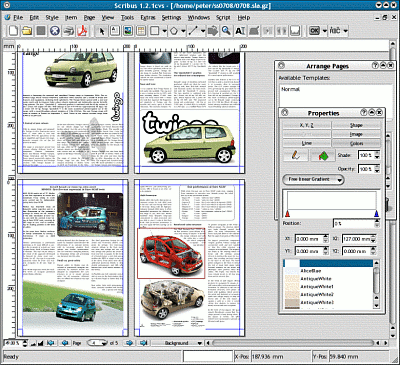
You can get it by running:

sudo apt-get install scribus

6. Avidemux

This software allows you to edit video files. You can append video files, cut some sections, process frame by frame, etc. It is a very complete video processing solution and it is also easy to use.
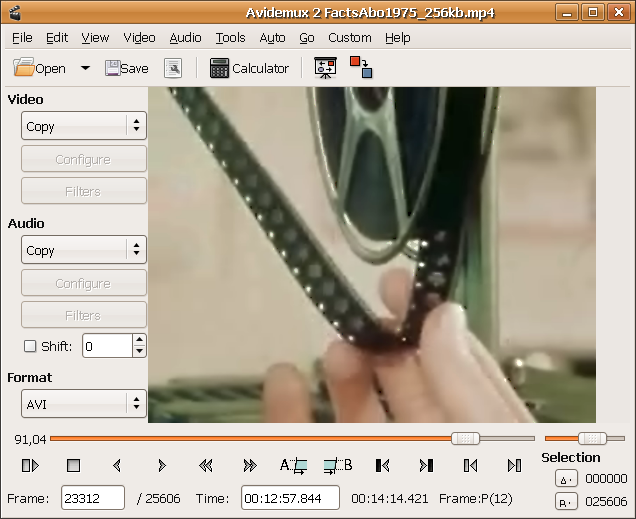
Install it by running the following command:

sudo apt-get install avidemux

7. VLC

For video playback, VLC is one of the best. It has a great support for many different codecs. You only need to install this and enjoy watching any type of videos with it.
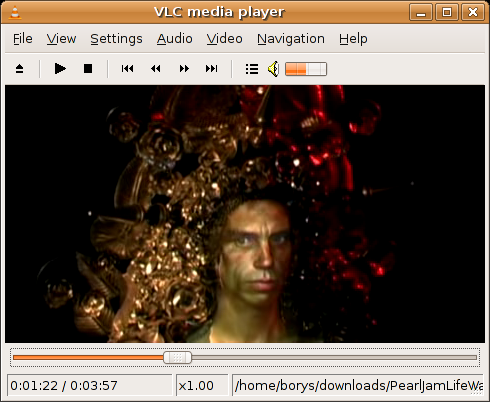
Install it by running this:

sudo apt-get install vlc

8. CD Audio Extractor

This software allows you to extract the music from a CD to your computer. It has a minimalistic interface for just doing that.
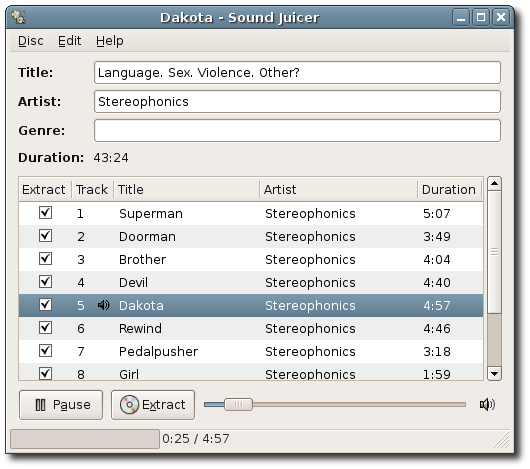
sudo apt-get install sound-juicer

9. RAR

This program allows you to compress and decompress rar files using the built in Ubuntu graphical interface.
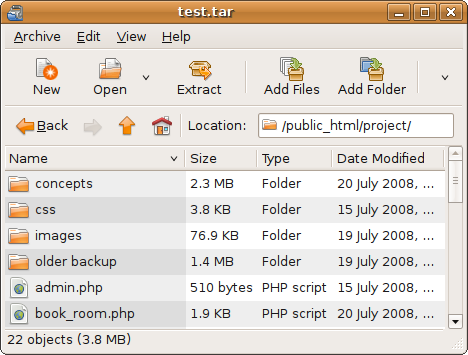
Install it with:

sudo apt-get install rar unrar

10. k3b

This is a CD/DVD burning application. It allows you to do everything you need for creating discs. Also, it allows you to burn gapless music cds (no 2 seconds pause between songs).
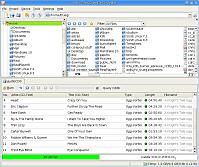
sudo apt-get install k3b

11. LyX
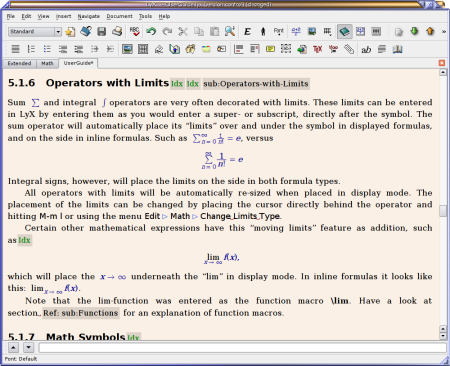
This is a document processor based on LaTeX. It allows you to write beautiful documents easier than writing plain LaTeX code.
Install it by running this:
sudo apt-get install lyx

12. Ubuntu Pocket Guide
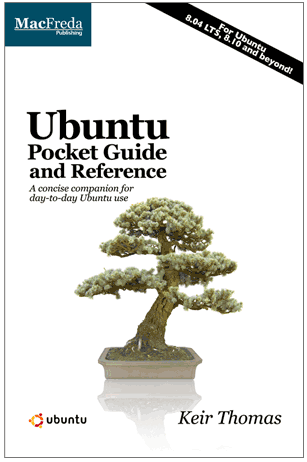
Well, this is not an application but a free ebook that teaches the Ubuntu essentials. It is very useful for novices and it can be used as reference for more experienced users. It is free, so you can just give it a try!.

Posted in Open Source, Programming.


Installing OpenCV 2.1 in Ubuntu

UPDATE: You can also install OpenCV 3.2.0 in Ubuntu 16.04LTS.

OpenCV is an excellent library for Computer Vision. I have been using it for years and it helped me a lot during my master thesis.

OpenCV 1.0 can be easily installed in Ubuntu via the repositories. You can install OpenCV 2.0 by following one of my previous posts https://www.samontab.com/web/2010/03/installing-opencv-2-0-in-ubuntu/

Unfortunately, the newer version of OpenCV, 2.1, which was released on April has a slightly different installation procedure. Since it contains many bug fixes and some nice new additions, I will show you how to install it.

UPDATE: Install OpenCV 2.2 in Ubuntu 11.04 with Python and TBB support here.

Here are the steps that I used to successfully install OpenCV 2.1 in Ubuntu 9.10. I have used this procedure for previous versions of Ubuntu as well with minor modifications (if any).

First, you need to install many dependencies, such as support for reading and writing jpg files, movies, etc… This step is very easy, you only need to write the following command in the Terminal


sudo apt-get install build-essential libgtk2.0-dev libavcodec-dev libavformat-dev libjpeg62-dev libtiff4-dev cmake libswscale-dev libjasper-dev

The next step is to get the OpenCV 2.1 code:

cd ~
wget https://sourceforge.net/projects/opencvlibrary/files/opencv-unix/2.1/OpenCV-2.1.0.tar.bz2/download
tar -xvf OpenCV-2.1.0.tar.bz2
cd OpenCV-2.1.0/

In this version of OpenCV, the configure utility has been removed. Therefore you need to use Cmake to generate the makefile. Just execute the following line at the console. Note that there is a dot at the end of the line, it is an argument for the cmake program and it means current directory.

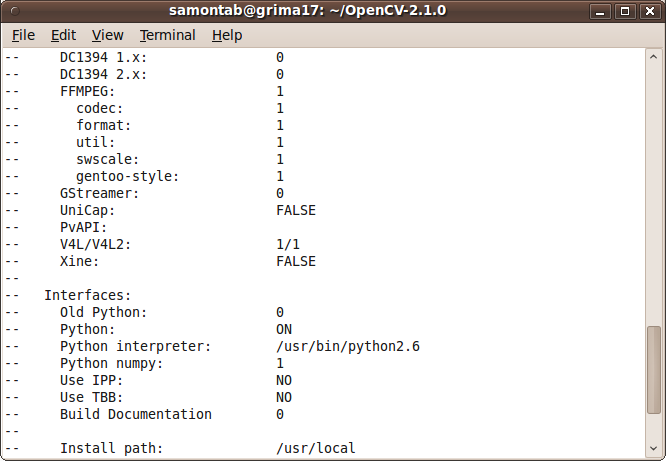
cmake .

Check that the above command produces no error and that in particular it reports FFMPEG as 1. If this is not the case you will not be able to read or write videos.

configuring opencv2.1

Now, you are ready to compile and install OpenCV 2.1:

make
sudo make install

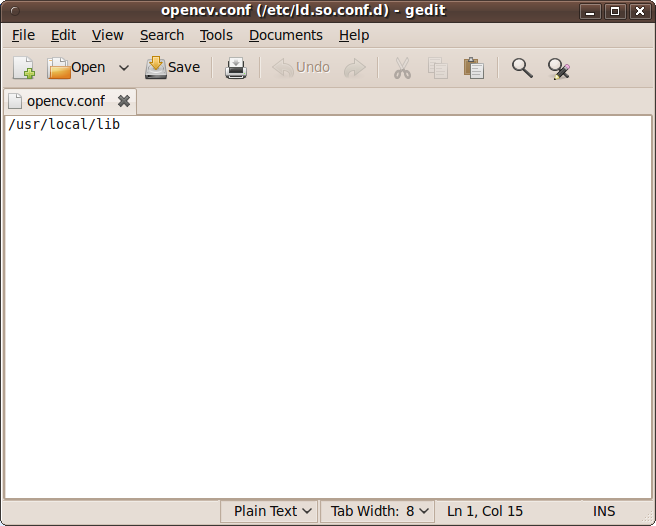
Now you have to configure the library. First, open the opencv.conf file with the following code:

sudo gedit /etc/ld.so.conf.d/opencv.conf

Add the following line at the end of the file(it may be an empty file, that is ok) and then save it:

/usr/local/lib

Run the following code to configure the library:

sudo ldconfig

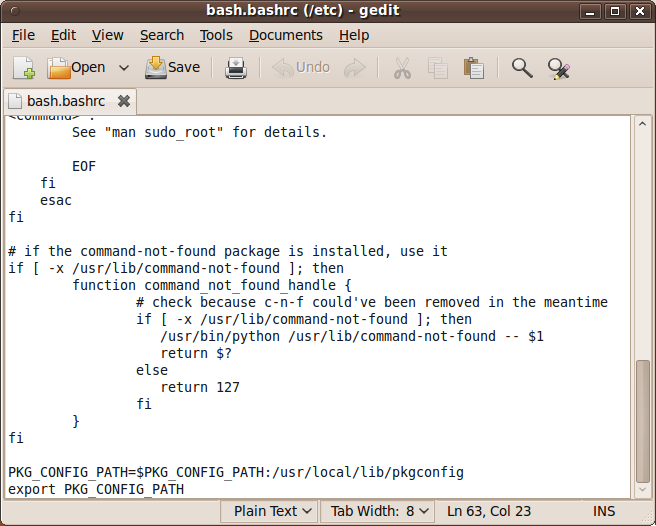
Now you have to open another file:

sudo gedit /etc/bash.bashrc

Add these two lines at the end of the file and save it:

PKG_CONFIG_PATH=$PKG_CONFIG_PATH:/usr/local/lib/pkgconfig
export PKG_CONFIG_PATH

Finally, open a new console, restart the computer or logout and then login again. OpenCV will not work correctly until you do this.

Now you have OpenCV 2.1 installed in your computer.

Let’s check some demos included in OpenCV:

cd ~
mkdir openCV_samples
cp OpenCV-2.1.0/samples/c/* openCV_samples
cd openCV_samples/
chmod +x build_all.sh
./build_all.sh

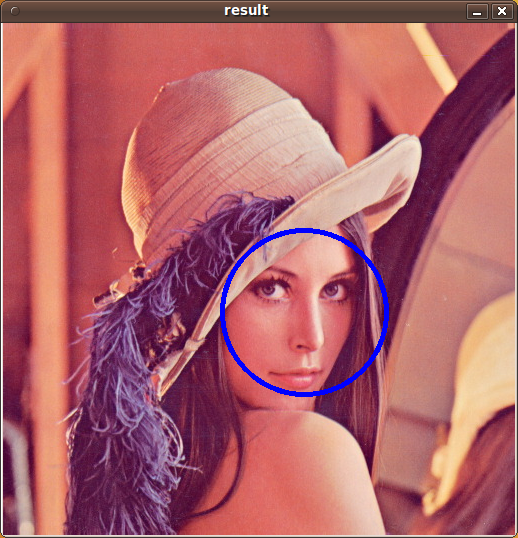
Some of the training data for object detection is stored in /usr/local/share/opencv/haarcascades. You need to tell OpenCV which training data to use. I will use one of the frontal face detectors available. Let’s find a face:

./facedetect --cascade="/usr/local/share/opencv/haarcascades/haarcascade_frontalface_alt.xml" --scale=1.5 lena.jpg

Note the scale parameter. It allows you to increase or decrease the size of the smallest object found in the image (faces in this case). Smaller numbers allows OpenCV to find smaller faces, which may lead to increasing the number of false detections. Also, the computation time needed gets larger when searching for smaller objects.

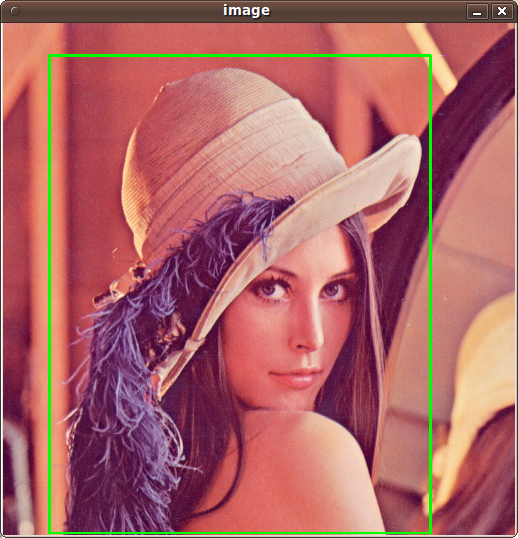
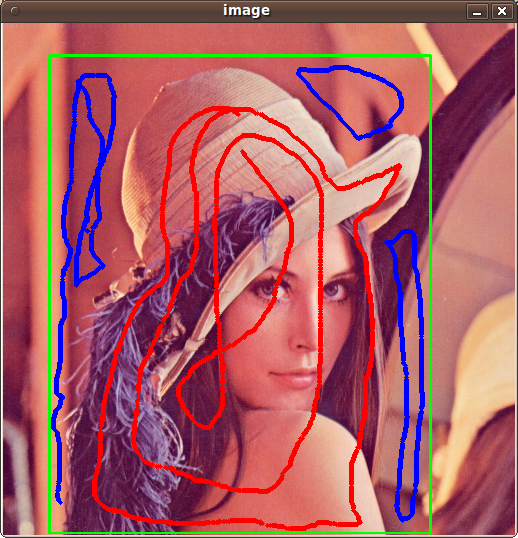
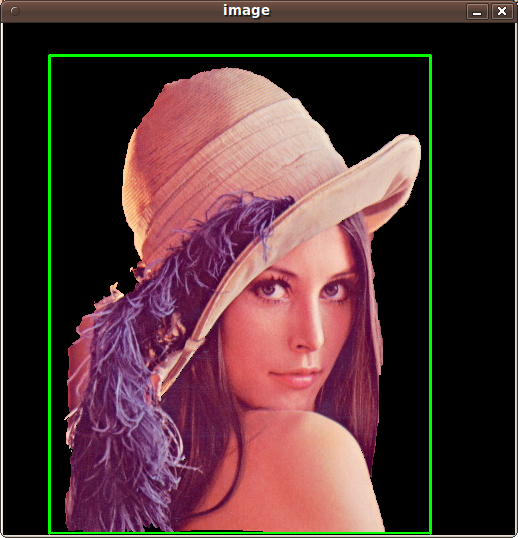
In OpenCV 2.1, the grabcut algorithm is provided in the samples. This is a very nice segmentation algorithm that needs very little user input to segment  the objects in the image. For using the demo, you need to select a rectangle of the area you want to segment. Then, hold the Control key and left click to select the background (in Blue). After that, hold the Shift key and left click to select the foreground (in Red). Then press the n key to generate the segmentation. You can press n again to continue to the next iteration of the algorithm.

./grabcut lena.jpg

This image shows the initial rectangle for defining the object that I want to segment.

Now I roughly set the foreground (red) and background (blue).

When you are ready, press the n key to run the grabcut algorithm. This image shows the result of the first iteration of the algorithm.

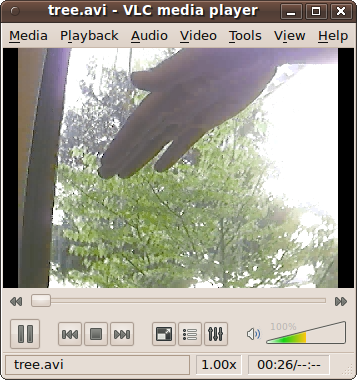
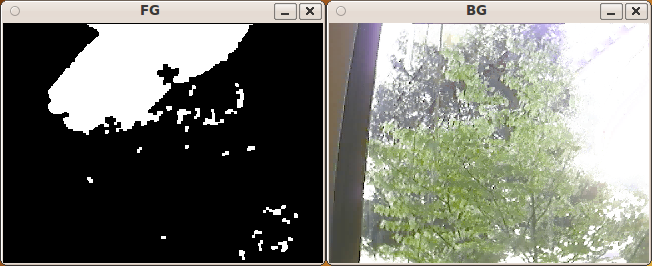
Now let’s see some background subtraction from a video. The original video shows a hand moving in front of some trees. OpenCV allows you to separate the foreground (hand) from the background (trees).

./bgfg_segm tree.avi

There are many other samples that you can try.

Posted in Computer Vision, Open Source, OpenCV.