Nokia’s N900 is a great smartphone. Actually it is a mobile computer running Linux. It has a touchscreen and a real keyboard as well as many embedded goodies: proximity and ambient light sensors, tri-axial accelerometer, camera, Bluetooth, Wi-Fi, GPS and IR. This makes the N900 the perfect device for your next hacking project or cool new application.
The first step for creating apps for the N900 is to download and install the Nokia Qt SDK. Qt is a very powerful SDK for creating applications for many environments, such as Windows, Linux, Mac, Maemo (this is what the N900 runs), Symbian, and Windows CE. That means that you only need to code once and you have native applications for all those environments. Nice.
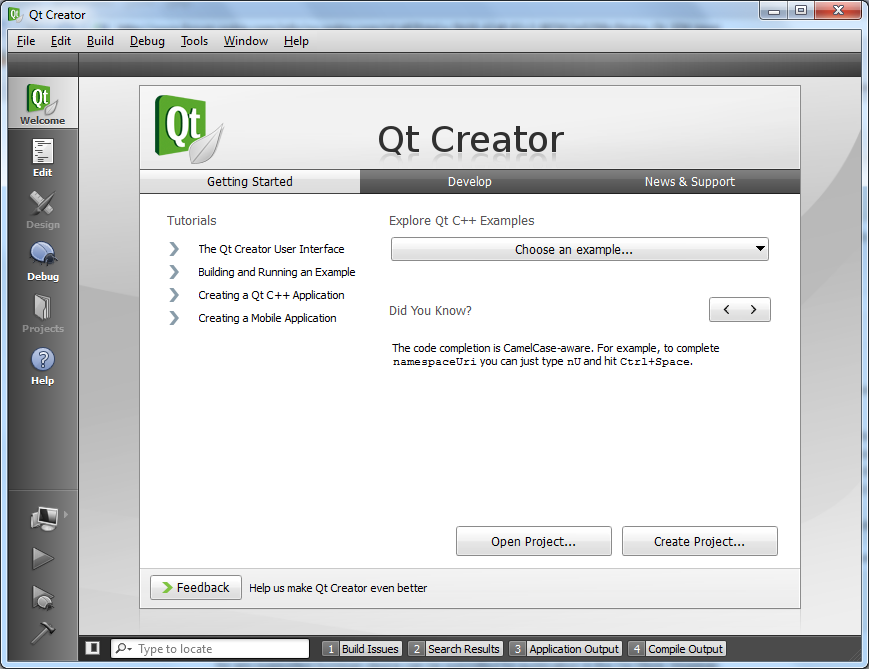
After Nokia Qt SDK is installed, open Qt Creator which is the IDE included with Qt. You should see something like this:
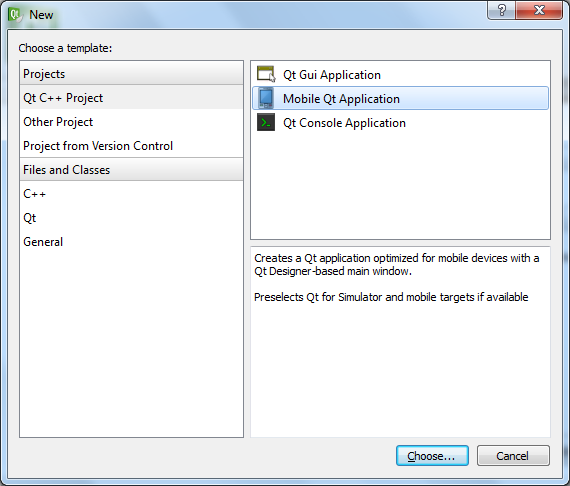
Now, you need to create a new project. Go to File->New File or Project. There, under Qt C++ Project, you need to select Mobile Qt Application and click Choose.
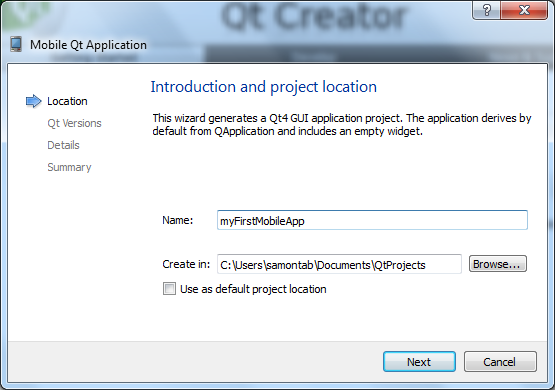
Now you need to input the name and path of the project. Make sure that you do not use any spaces or special characters in either the name or the path of the project.
In the next window you will define the targets of your project. The options shown will depend on the specific SDKs that you have installed on your computer. At least you should have Maemo, Qt Simulator and Symbian Device since all of them are part of the Nokia Qt SDK. Select Maemo and Qt Simulator. Maemo is the platform for the N900 and the Qt Simulator is useful for design and debug on the PC.

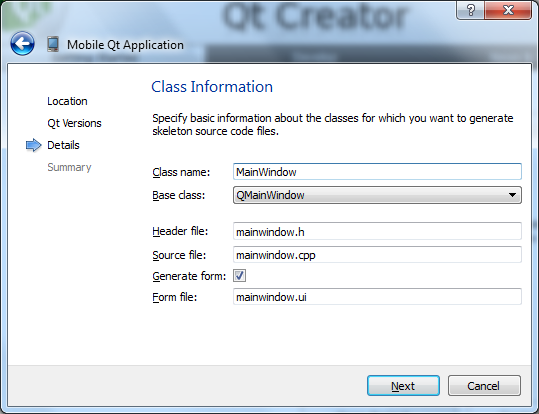
Next you will see the details of the classes that will be generated for you. Leave everything as default. It will create a class called MainWindow derived from QMainWindow. Nothing to worry here, basically it is a class that represents a window. There are three files that will be created for this class; the mainwindow.cpp which holds the implementation of the methods of the class, mainwindow.h which defines the class itself and lists the methods, and mainwindow.ui which generates the UI based on the graphical designer inside Qt Creator. Just press Next.
Now you will see the summary of the project. Click on Finish.

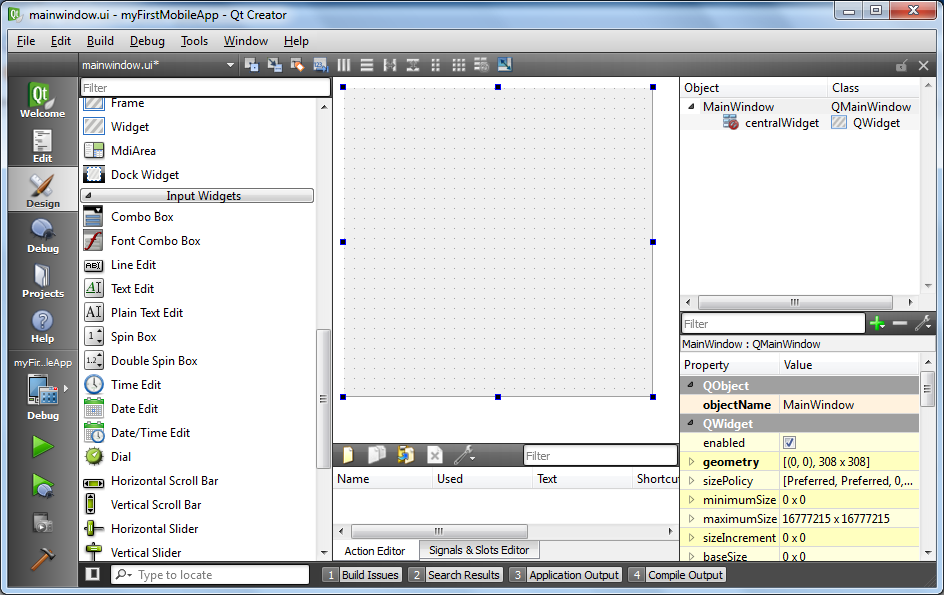
Now you have a blank window and different controls that you can drag and drop into it. You can add buttons, text edits, combo boxes, calendars, and many more. Try dragging a couple of controls and looking at their properties on the right side. You can erase any control by just selecting it and pressing the Delete key.
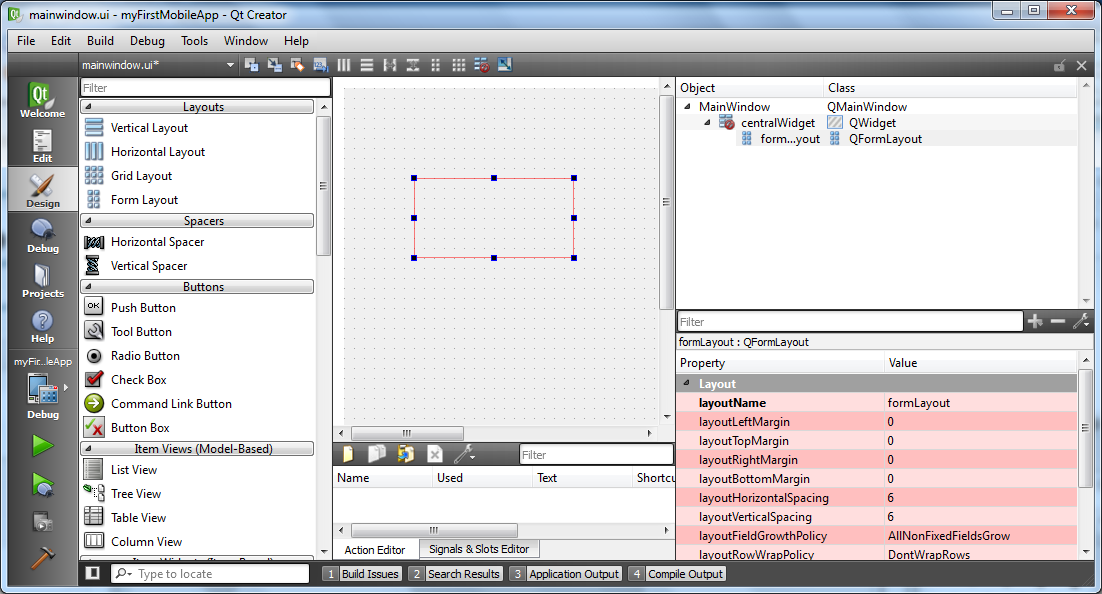
Let’s create a very simple application, something that sums two numbers. First, we need to add a Layout. A Layout brings order to the application’s items, and makes sure that it will look good on any platform. There are different types of layouts: horizontal, vertical, form and grid. Vertical and horizontal layouts are straightforward since they represent just a list of items on each direction. If you want to put two items per row, you can use the form layout. This layout is perfectly suited for aligning each text label with its corresponding text edit. If you have a more complex application UI, you can use the grid layout which is more flexible. For this simple application I will use the Form Layout. Just drag it to the window. A red rectangle should appear.
Now lets put some controls on the layout. I will be using three Text Edits, one for each number and one for the sum of them. You can find them under the Input Widgets category. Also, I will be using two Labels, found under Display Widgets and a Push Button, found under the Buttons category. Drag and drop them inside the red rectangle so that you see something like this:
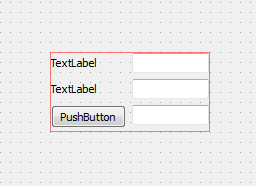
Now lets configure each item. You can double click on each of them to change the text or to input default values. If you click on an item it will be selected, and all of its properties will be shown on the right side. Select each line edit and change its objectName property to number1, number2 and sum accordingly. Change the push button objectName to sumNumbers. The last thing that you need to do here is to set the sizePolicy for each item. Select every item and under sizePolicy, for horizontal and vertical select Expanding. This means that the items will expand to the correct size for any device. If you do not set these policies, probably you will not be able to see the items on the phone due to their small size.

OK, lets do some coding now. What we want the application to do is to sum number1 and number2 and output the result when the users clicks the Sum button. An easy way of accessing the code is to right click on the push button and select Go To Slot…. This will open a dialog with all the slots of that object. We are interested in the Clicked() slot, so select it and click OK. If you ask yourself what a slot is, just think of it as an event. Although if you really want to use Qt you should learn about signals and slots.

Alright, now we are in the Edit tab of Qt Creator (before we were in the Design tab). This is where you can see all the source files and the actual code for the application. If you selected the Clicked() slot from the previous paragraph, a function will be created for you. Note that the function name, on_sumNumbers_clicked(), has the name of the item (sumNumbers) and the slot (clicked()). This is the actual function that gets called when the sum button is pressed. Here is where we will do the actual coding.
void MainWindow::on_sumNumbers_clicked()
{
 //anything from the user interface that we created is inside the ui object.
//first, get the two numbers as ints
 int number1 = ui->number1->text().toInt();
 int number2 = ui->number2->text().toInt();
 //now sum the numbers
 int result = number1 + number2;
 //finally store the result as text in the sum line edit
 ui->sum->setText(QString::number(result));
}
OK, now the coding is done. Lets see it running on the emulator. Make sure that Qt Simulator is selected on the left side, above the green play button. To run it, just press the green play button. You should see something like this:

Note that this is the actual N900 simulator. If you see a different phone, you can change it in the simulator window: Under the View category you will see a Device selection, just select Maemo Freemantle and the N900 should appear. Now you can use the application, input some values and after you click Sum, the result should appear correctly. If the application does not work properly at this stage, go back to the code and correct any mistakes.
Once you have your application running in the simulator, it is time to compile it for the real N900 device. For doing that first close the simulator. Then, select Maemo above the green play symbol. Wait a couple of seconds until the Parsing, Scanning and Evaluating processes are done. After that, go to Build->Build All. Do not press the green arrow as you did before with the simulator. Wait until the building process is finished.
Although the application was built successfully, there are a couple of things that we need to do before we can send the application to the device. First, go to the directory where the project was created. You should see the source files as well as the compiled application, myfirstmobileapp_0.0.1_armel.deb and a debian folder. Go inside that folder. There you will find a file called control. We need to edit this file. Drag and drop it inside Qt Creator (or use any other editor). The contents of the file will be something similar to this:
Source: myfirstmobileapp
Section: unknown
Priority: extra
Maintainer: unknown <>
Build-Depends: debhelper (>= 5)
Standards-Version: 3.7.3
Homepage: <insert the upstream URL, if relevant>
Package: myfirstmobileapp
Architecture: any
Depends: ${shlibs:Depends}, ${misc:Depends}
Description: <insert up to 60 chars description>
 <insert long description, indented with spaces>
The problem is in the Section: unknown statement. You need to change it to any valid section different than unknown. For example Section: user/development or Section: user/other or any other valid section. If you don’t change this, you will receive an “incompatible application package” error when you try to install your application.
Now we are going to add an icon for the application. Inside the Debian directory, you will see a folder with the name of your application, in my case myfirstmobileapp. Go inside that folder. There you will see two folders, DEBIAN and usr. Go inside the usr folder. There you will see three folders: bin, local and sbin. Create a new folder there called share. Go inside the newly created share folder. There, create two folders: icons and applications. Inside the icons folder, place the icon for your application, in png format and 64×64 in size. Name it myfirstmobileapp.png or your specific application name. You can use this image as a template.

Now, go inside the Applications folder that you just created. There, create a folder called hildon. Go inside that folder. There, you have to create a text file called myfirstmobileapp.desktop. It should have the following contents:
[Desktop Entry]
Encoding=UTF-8
Version=1.0
Type=Application
Name=myFirstMobileApp
Exec=/usr/local/bin/myFirstMobileApp
Icon=myfirstmobileapp
StartupWMClass=
X-Window-Icon=myfirstmobileapp
X-HildonDesk-ShowInToolbar=true
X-Osso-Type=application/x-executable
Terminal=false
Make sure that you change myfirstmobileapp with your application name. Note that the icon filename does not need to have the PNG extension. After doing that, you are ready. Delete the application (myfirstmobileapp_0.0.1_armel.deb), go to Qt Creator and build it again. Now the generated application should install without a problem in your N900.
Now you need to send the application deb file into your phone. You can do that easily by transferring the file via Bluetooth from your computer. You can select in the N900 to automatically open the file once the transfer is completed. That will launch the installation process. Also, you can use other methods such as an USB cable, or using internet and then use the file browser to navigate to the deb file and launch the installation process. That is all you need to install an application in the N900.
If you are having problems following this tutorial, or if you just want fast results, you can download my sample project and use it as a template for your applications. This way you can focus more on creating cool applications instead of trying to compile them on the N900.
Instructions:
First, download the project and extract it. Then, double click on myFirstMobileApp.pro. This will open Qt Creator. Select Maemo and Qt Simulator on the Project Setup window. Then, select Maemo as the target (above the green arrow) and then build the project (Build->Build all).
Now you need to make the corrections so that it installs on the N900. Download this and extract it. Put the share folder you just extracted inside the debian/myfirstmobileapp/usr folder . You should now see four directories under usr: bin, local, sbin and share.
The next step is to overwrite the control file. Download the corrected file from here and copy it into the debian directory. Overwrite the old control file.
Now go to Qt Creator and select Build->Rebuild All. Enjoy!