Skip to content


How to install Redmine 1.1.2 on Ubuntu Server 10.04

Redmine is an excellent project management tool written using Ruby on Rails. It provides everything you need to organise your workplace or personal projects. Once you see it working you definitely will want to use it on your own projects. Everything is great until you want to install it since redmine only works with very specific versions of its dependencies. There are many steps that you need to take into consideration, even if you install the outdated version in the repositories. In this guide, I will show you how to install redmine 1.1.2 (the latest version at the time of writing) on Ubuntu Server 10.04 32 bits (latest LTS version at the time of writing).

Make sure that you installed Ubuntu Server 10.04 with SSH (optional) and LAMP support. Both can be selected to be automatically installed at the end of the normal Ubuntu Server 10.04 installation. Once it is installed, remember to update and upgrade your system.

sudo apt-get update
sudo apt-get upgrade

First, let’s install some dependencies:

sudo apt-get install ruby1.8-dev rubygems1.8 libmysql-ruby libmysqlclient-dev rake libopenssl-ruby libapache2-mod-passenger imagemagick libmagickcore-dev libmagickwand-dev

Now we can install the required packages for ruby, or gems. Note that some packages will take a long time to install and provide no output, so just be patient. Also, you will see some warnings like No definition for X. Ignore those, they mean that some documentation was not installed, and we can live with that.

sudo gem install rails -v=2.3.5
sudo gem install mysql
sudo gem install ruby-openid
sudo gem install i18n -v=0.4.2
sudo gem install passenger
sudo gem install rmagick

Now we have to prepare the database. Enter the MySQL console as root:

mysql -uroot -p

Provide the root password. This is the password you set in the early LAMP installation. Now, inside the MySQL console, execute these commands:

create database redmine character set utf8;
create user 'redmine'@'localhost' identified by 'myPassword';
grant all privileges on redmine.* to 'redmine'@'localhost';
exit

Remember to change myPassword with your actual password. This is the one that will be used for the user redmine in the database redmine at localhost.

Now it is time to get the redmine code. Execute the following commands to get redmine 1.1.2.

cd ~
wget http://rubyforge.org/frs/download.php/74419/redmine-1.1.2.tar.gz
tar -xvzf redmine-1.1.2.tar.gz
cd redmine-1.1.2

Now setup the database configuration file to match our current environment:

cp config/database.yml.example config/database.yml
nano config/database.yml

Put the details of the database on the specific fields, in particular username and password. Username should be redmine and password should be myPassword or the one you provided before. Make sure that you change both, production and development sections. When you are finished, just hold Control and then press X. This is the command for exiting nano. It will ask if you want to save the changes, just press y (as in yes) and hit enter. That’s it, file saved and back to the console.

Now do the same for configuring email:

cp config/email.yml.example config/email.yml
nano config/email.yml

For this example, we are going to use gmail, but you can use any email settings that you need. Make sure that address is smtp.gmail.com, port is changed to 587, domain is set to gmail.com (or your host if you use google apps) and that the user_name and password are your credentials. Also, make sure that you add a tls: true line. And finally, the most important part, is that you change login with plain in authentication.

production:
 delivery_method: :smtp
 smtp_settings:
 address: smtp.gmail.com
 port: 587
 tls: true
 domain: gmail.com # or your domain
 authentication: :plain
 user_name: fancyUsername@gmail.com # or your domain
 password: secretPassword

For gmail to work, we need to install a script. Let’s get it:

sudo apt-get install git-core
ruby script/plugin install git://github.com/collectiveidea/action_mailer_optional_tls.git

Let’s proceed with the installation:

rake generate_session_store
sudo mkdir /opt/redmine
cd /opt/redmine
sudo cp -r ~/redmine-1.1.2 .
cd redmine-1.1.2
sudo RAILS_ENV=production rake db:migrate
sudo RAILS_ENV=production rake redmine:load_default_data

Press enter to accept the default language (English) and then execute the following:

sudo chown -R www-data:www-data files log tmp public/plugin_assets
sudo chmod -R 755 files log tmp public/plugin_assets
sudo nano /etc/apache2/mods-available/passenger.conf

Add this line inside the <IfModule mod_passenger.c> tag:

PassengerDefaultUser www-data

Now let’s configure apache:

sudo nano /etc/apache2/sites-available/default

Just before the closing tag, </VirtualHost>, add the following:

RailsEnv production
RailsBaseURI /redmine

Now we put a link to our application to be accessible from apache and restart it:

sudo ln -s /opt/redmine/redmine-1.1.2/public /var/www/redmine
sudo /etc/init.d/apache2 restart

Some clean up…

cd ~
rm -r redmine-1.1.2
rm redmine-1.1.2.tar.gz

The installation process is finished. Open a web browser in another computer and go to yourServerIP/redmine and you should see the initial page of redmine. If it does not show, then something is wrong in your installation. Go back and carefully follow the steps from the beginning. If you do not know your IP address, just run ifconfig from the server.

Click on Sign-in. Enter admin for user and password. Now you are logged in as the redmine administrator. Go to Administration and then click on Information. You should see the following:
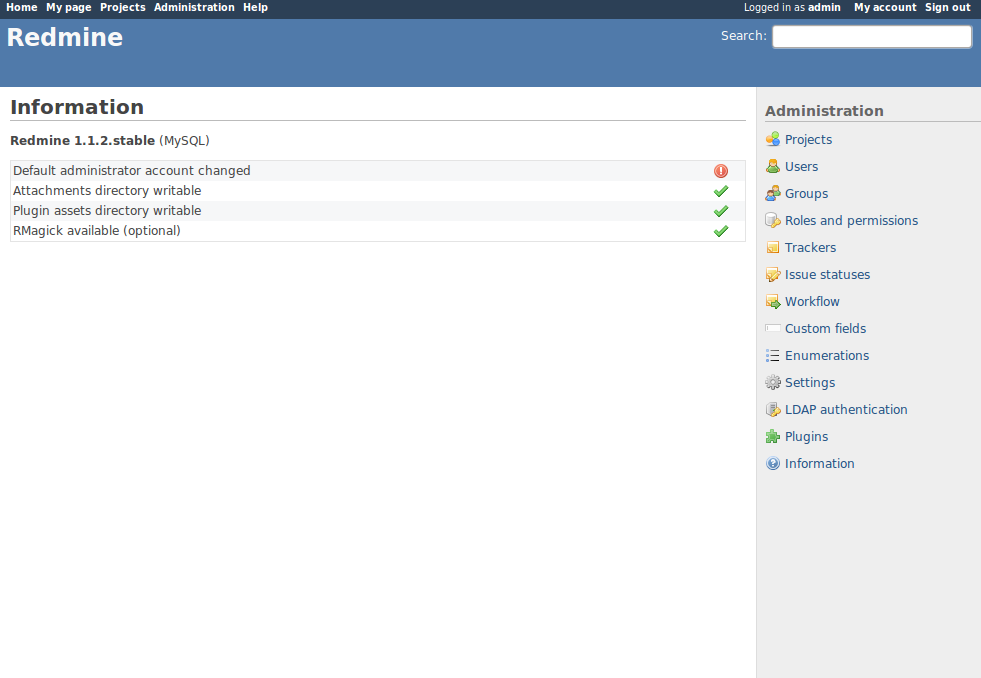
Note that Redmine 1.1.2 stable is installed correctly with RMagick and the directories that it needs are writeable. The only thing left to do here is to change the details of the administrator account (that is why there is one error sign), and start creating users and projects and manage them with this great tool. Once you change your administrator account, you should see no errors on the information page:

And now you can enjoy all the features of this great project manager: Gantt charts, Roadmaps, wiki, file repositories, multiple project support, forums, and much more…


Posted in Open Source, Programming.


40 great apps for the Nokia E71, or how to do cool things with your symbian phone

I really like my Nokia E71. And I am not the only one saying it. It has many fans around the world, so it is not surprising that it has more than 300 positive reviews on Amazon. It also comes with a nice price tag. The only problem I had was that I spent a lot of time searching for useful applications for this phone. This post is the result of my findings: 40 great applications that cover my needs(and hopefully yours) in many different areas.

The E71 is powered by Symbian OS, specifically S60 3rd edition. This version of the Symbian OS is currently the oldest one that can run most of the software that is out there, including applications developed with the new Nokia Qt SDK. This means that if you have a phone with a newer version of the Symbian OS (S60 5th edition or Symbian^3), you should be able to run all the applications that I am going to list here as well.

OK, here I present you 40 great apps for the Nokia E71:

  1. Y-Browser
    This is a file browser for your phone. The nice thing is that it shows you hidden directories and files, so it is better to use this one instead of the built in browser.
  2. JoikuSpot Light
    Share your phone’s internet connection via WiFi. Connect multiple devices (laptops, other WiFi enabled phones, etc) to your phone and browse the internet everywhere.
  3. SportsTracker
    If you do any type of outdoor exercises like jogging, walking, cycling, etc, download this app. It logs your position using GPS, and then uploads your exercises to an online server that shows your average speed, distance covered, map of the region, etc. It also can be connected to social networking sites such as facebook to encourage your work outs. Highly recommended.
  4. Nokia Maps
    The nice thing about Nokia Maps is that the maps data can be downloaded to the phone’s memory and then you can use it without any connection to the internet. Ideal when travelling abroad and you don’t have a local sim card or when you don’t want to pay for data plans. Also, it comes with turn by turn voice directions in many languages. And all of this for free, for ever.
  5. Google Maps
    Some times you may need extra information that is not available on Nokia Maps. On these rare occasions it is always handy to have the Googls Maps application installed. The good thing is that you can use the places that you saved on Nokia Maps (Favorites) in Google Maps (Starred Items). Note that this app does not come with turn by turn voice directions and it uses internet to get the maps.
  6. Metro
    This application tells you the shortest route from one station to another in your local metro (subway), as well as the one with fewest connections. It uses offline data, so no internet access is necessary. Cities from all over the world are supported. Highly recommended.
  7. cCalcPro
    This is a powerful yet easy to use scientific calculator. It contains many functions such as simple mathematical ones, as well as trigonometric,  financial and base functions. You could actually just use this calculator for every calculation you make, even for the simple ones since it is so easy to use, every key in the keyboard is mapped to a specific function, so it is like using a real calculator.
  8. MobiReader
    This app turns your phone into a nice e-book reader. For managing your e-books, and changing them to the format that this app understands, you can use Calibre, a great software for managing e-books on the PC.
  9. Photo Browser
    This app displays your photos in a nice grid gallery with an easy to use interface. It looks and works better than the built in photo viewer.
  10. Snapper
    If you want to make time-lapse movies, this is the app you should get. It allows you to take a picture every second, minute, hour, or any time interval that you need, up to one picture a day. It is simple to use and it works great. All the images are stored in a single folder. You can transfer that folder to the PC and then just drag and drop the first image into Avidemux and with a couple of clicks you can create a video out of them.
  11. ScreenSnap
    This is for taking screen-shots in your phone. It does the same thing as the Print Screen button on a PC.
  12. SmartCam
    This application allows you to use your phone as a web-cam. It can use Bluetooth or WiFi for connecting to the device.
  13. m3DCam
    Have you ever seen a 3D image using a Red and Cyan lens?, well this app lets you create those images. Take an photo, move the phone and take the second one. This app then creates the image that you can see with your lenses in 3D.
  14. BeatEd
    Do you play any instrument?, if you do, you should check this app out. It is a drum machine. Ideal for accompanying your training sessions. You can create your own rhythms with its 16 channel audio mixer. It is really easy to use and you can download many samples from the website to get you started.
  15. Chromatic Tuner
    If you need to tune your instrument, this is the app that you are looking for. Simply go to a quiet place, start the application and play a note on your guitar (or any other tunable instrument). It will tell you which note is being played.
  16. eBuddy
    Instant messenger. Chat with your friends from msn, yahoo, facebook, and many others in just one application.
  17. Opera Mobile
    A great mobile web browser, with support for tabs and many other features.
  18. Skype
    Call and chat worldwide with your friends, cheaper than using regular phones.
  19. Fring
    This application integrates all your contacts from your phone contacts, msn, yahoo, etc, and allows you to chat, call and video call them using internet as well as cellular calls. It could be used to replace the native contact list, as well as the log of the calls.
  20. Gmail
    Read your email everywhere.
  21. S60SpotOn
    Use your camera flash and the LCD screen to illuminate your surroundings. Nice to have when the lights go out.
  22. Compass
    This application uses the position of the sun and moon to indicate you where the north is. You only need to put the phone facing up, aligned with the shown diagram and you will know where the north is. Also, it gives you extra information such as sunrise, sunset and moon phase.
  23. Sideralis
    If you like to watch the stars, this app is for you. Once you configure it for your location, it will show you the stars that are in your view. You can freely navigate the 3D display of the stars to match the part of the sky you are looking at. Information about the stars is available as well as some astronomic terms explained.
  24. RemoteWitch
    Control your PC with your phone. Specially useful for presentations or media playback.
  25. PyS60
    This is the Python port to the S60 phones. Install it to add the ability to run python scripts on your phone. You need to install both, first PythonForS60_1_4_5_3rdEd.sis and then PythonScriptShell_1_4_5_3rdEd.SIS. Note that there is a newer version of PyS60 here that features Python 2.5, but some applications need the older version installed. Well, you can actually have both versions installed without problems.
  26. Ped
    This is a Python IDE as well as a general text editor. You need to install PyS60 first in order to install it. Also, you need to install it on the same place that you installed PyS60 (phone memory). It has many features, in particular auto completion. You can access the auto completion feature by holding the green button (call) and then pressing the enter button (center of d-pad). This app is also great for text editing in general.
  27. JBakTaskMan
    This is an advanced task manager. It has many nice features, such as launching applications by typing their name, among many others. A must have app for the power user.
  28. FreeTimeBox
    This is an awesome and simple application. It simply displays the current time at the menu bar, always. Now you will never need to go to the Home screen just for knowing the time when you are in the middle of something. You can configure it to disappear when certain applications are running (games for example), as well as the appearance and position. This app is a must.
  29. vHome 4.2
    If you want to change how the Home screen looks, you can install this app. It is a task manager that allows you to change the Home screen with many features. For example, if you need more than the normal 6 apps shortcuts, you can add up to 14 with this app. You can also add weather information or RSS feeds to your home screen. Recommended for the power user.
  30. GPFCe
    Nintendo emulator. This emulator supports sound. Re play your old NES games while you wait for the bus, or anywhere!.
  31. AntSnes
    Super Nintendo emulator. It does not support sound though, but the idea of having the ability to play your old Super NES games in your phone is awesome.
  32. DOSBox
    DOS emulator. This is the port of the DOSBox project to the S60 platform. With this, you can run DOS on your phone, so you can use all your old DOS programs in your phone. You can even run big applications such as Windows 98.
  33. Pamp
    Personal Apache MySQL PHP. Really. You can have a whole web-server on your phone, with databases,  and dynamic pages. You could be hosting a whole CMS or a forum from your pocket. You could for example show a live feed from the camera without needing any external services. The possibilities are endless.
  34. SICFTP
    This is an FTP client. Transfer files back and forth from any server.
  35. Putty
    Good ol’ Putty. Telnet and SSH client on your phone. Thanks to this you could be working on the bus ride to/from work.
  36. CpuMon
    This application displays the usage of CPU and Memory. Good for measuring performance of applications on real devices.
  37. Energy Profiler
    Nokia released this nice application which shows the energy consumed by the device. This can be useful to developers and normal users. Developers can use this app for measuring the energy used by their applications to try to minimize it. Normal users can see the effects of applications and usage of the phone for extending battery life.
  38. Device Status
    This app, developed by Nokia, shows you detailed information about the phone, such as the model, IMEI number, software version, memory available, installed applications, and network information, among other things.
  39. CellTrack
    This application shows you information about the cell that you are connected to, such as the cell id and signal strength, among others.
  40. FreeUnRar
    This application allows you to open rar files.

Please let me know if you think there is a cool application for the E71 that is missing from this list.

Posted in IoT, Open Source, Programming.