Skip to content


Use your old Nokia symbian phone as a music web server

If you have a Wi-Fi capable Nokia Symbian phone with a memory card and also a Wi-Fi router, you can use them to serve your music at home. This is a great way of having all your music in just one place and access it from any wireless capable device (i.e. laptops) as well as sharing it with others at your house. Also, you could still enjoy the same music on the go since it is stored on your mobile phone. This means that you can turn an old unused mobile phone into a very small and noiseless music server for free.

OK, the first step is to install PAMP. This is a web server for mobile phones. It contains Apache, MySQL and PHP, all in one nice installable sis package for your phone.
To install it, just go here and download the file named pamp_1_0_2.zip (not the SDK one).
Extract the files. Notice that there are three .sis files. First install pips_nokia_1_3_SS.sis, then install ssl.sis and finally install pamp_1_0_2.sis.
Now you should have a PAMP application on your phone. Open it. You should see something like this:

Now, click on Options and then select Start->Pamp. Answer Yes to the Start WLAN? question and select your home wireless network.
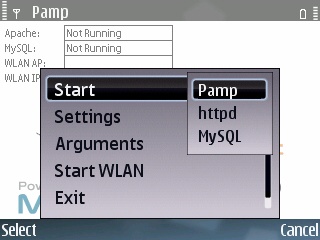
You should now see that Apache and MySQL services are running, the name of your wireless network and the assigned IP number. That number is the one you need to connect to your phone. Write it down. It should look something like this:

Let the PAMP application running on the background as is. You can do that by just pressing your Home button. Now let’s check that everything is working so far. In your laptop open up Firefox (or any other web browser) and type in the IP address from the previous step. You should see something like this:

If you see the something similar, the Apache server is working. Now follow the phpinfo.php link. It should display information about your mobile server (cool, isn’t it) like this:

The web pages that you are looking at now are stored in the phone at E:/DATA/apache/htdocs. E: represents the memory card. This is the public folder that is being served by PAMP. The index.html file is the home page being displayed, and phpinfo.php is the link you just visited.

You may edit these web pages if you wish. You can install Y-Browser to navigate your documents or create folders in your phone. Also, you can install ped for editing text files on your phone (this one requires Python for S60 to be installed first). You can also edit the files on your PC and then transfer them back to your phone.

The next step is to download whispercast which is a lightweight PHP script for music streaming, perfect for our needs (Thanks Manas Tungare for making this cool script!). On your Desktop, create a folder called music (it has to be exactly this name to make it work without configuring anything else). Extract all the files from the zip you just downloaded into this folder. Now add all the mp3 files that you want into the music folder as well. Each directory of mp3 files will be a play-list.

Now you need to transfer the entire music folder (not just the contents, the folder itself too) into the phone, inside the E:/DATA/apache/htdocs folder.

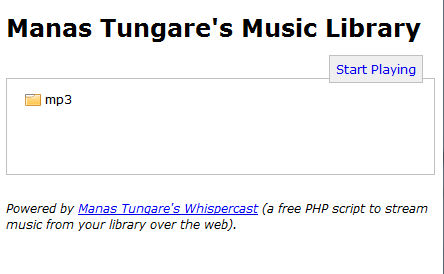
It is now time to go to your laptop and type in the IP address followed by /music. For example, if your IP is 192.168.0.100, then you need to go to 192.168.0.100/music. You should now see the text Manas Tungare’s Music Library, with the list of your mp3 files. Navigate to the folder/play-list you want to hear and click on Start Playing. It will create a play-list on the fly and ask you to select the music player that you want to use. If in doubt, just select the default player. After that, you can just save the play-list and double click on it or create a new one visiting the same page.
If you need to tweak some parameters, just edit the config.php file. For changing the format or text displayed, you can edit the other files.

That’s it, now you can listen to your music from anywhere in your house with a small and noise free music server. It should work for Linux, Windows, Mac, or even other mobile phones or tablets.
Posted in IoT, Open Source, Programming.


Installing OpenCV 2.2 in Ubuntu 11.04

UPDATE: You can also install OpenCV 3.2.0 in Ubuntu 16.04LTS.

Many people have used my previous tutorial about installing OpenCV 2.1 in Ubuntu 9.10. In the comments of that post, I noticed great interest for using OpenCV with Python and the Intel Threading Building Blocks (TBB). Since new versions of OpenCV and Ubuntu are available, I decided to create a new post with detailed instructions for installing the latest version of OpenCV, 2.2, in the latest version of Ubuntu, 11.04, with Python and TBB support.

First, you need to install many dependencies, such as support for reading and writing image files, drawing on the screen, some needed tools, etc… This step is very easy, you only need to write the following command in the Terminal


sudo apt-get install build-essential libgtk2.0-dev libjpeg62-dev libtiff4-dev libjasper-dev libopenexr-dev cmake python-dev python-numpy libtbb-dev libeigen2-dev yasm libfaac-dev libopencore-amrnb-dev libopencore-amrwb-dev libtheora-dev libvorbis-dev libxvidcore-dev

Now we need to get and compile the ffmpeg source code so that video files work properly with OpenCV. This section is partially based on the method discussed here.

cd ~
wget https://ffmpeg.org/releases/ffmpeg-0.7-rc1.tar.gz
tar -xvzf ffmpeg-0.7-rc1.tar.gz
cd ffmpeg-0.7-rc1
./configure --enable-gpl --enable-version3 --enable-nonfree --enable-postproc --enable-libfaac --enable-libopencore-amrnb --enable-libopencore-amrwb --enable-libtheora --enable-libvorbis --enable-libxvid --enable-x11grab --enable-swscale --enable-shared
make
sudo make install

The next step is to get the OpenCV 2.2 code:

cd ~
wget https://downloads.sourceforge.net/project/opencvlibrary/opencv-unix/2.2/OpenCV-2.2.0.tar.bz2
tar -xvf OpenCV-2.2.0.tar.bz2
cd OpenCV-2.2.0/

Now we have to generate the Makefile by using cmake. In here we can define which parts of OpenCV we want to compile. Since we want to use Python and TBB with OpenCV, here is where we set that. Just execute the following line at the console to create the appropriate Makefile. Note that there is a dot at the end of the line, it is an argument for the cmake program and it means current directory.

cmake -D WITH_TBB=ON -D BUILD_NEW_PYTHON_SUPPORT=ON -D WITH_V4L=OFF -D INSTALL_C_EXAMPLES=ON -D INSTALL_PYTHON_EXAMPLES=ON -D BUILD_EXAMPLES=ON .

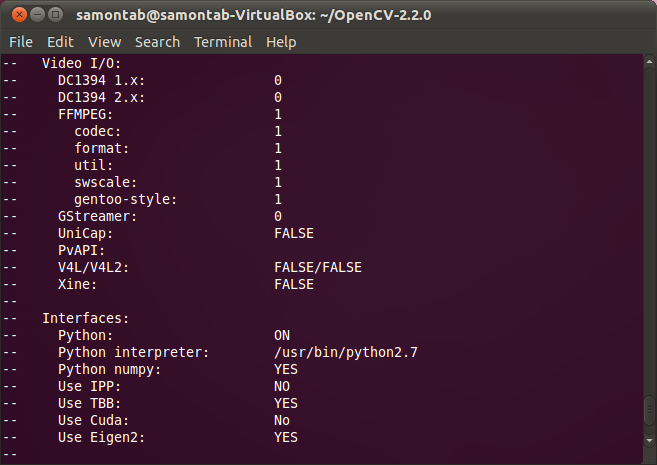
Check that the above command produces no error and that in particular it reports FFMPEG as 1. If this is not the case you will not be able to read or write videos. Also, check that Python reports ON and Python numpy reports YES. Also, check that under Use TBB it says YES. If anything is wrong, go back, correct the errors by maybe installing extra packages and then run cmake again. You should see something similar to this:

Now, you are ready to compile and install OpenCV 2.2:

make
sudo make install

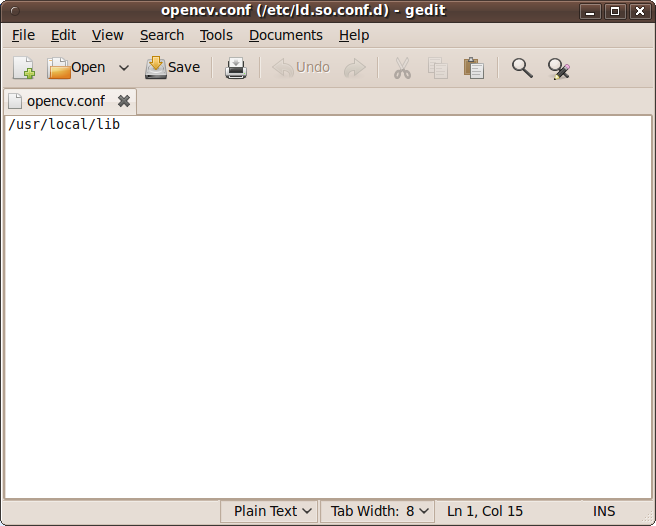
Now you have to configure OpenCV. First, open the opencv.conf file with the following code:

sudo gedit /etc/ld.so.conf.d/opencv.conf

Add the following line at the end of the file(it may be an empty file, that is ok) and then save it:

/usr/local/lib

Run the following code to configure the library:

sudo ldconfig

Now you have to open another file:

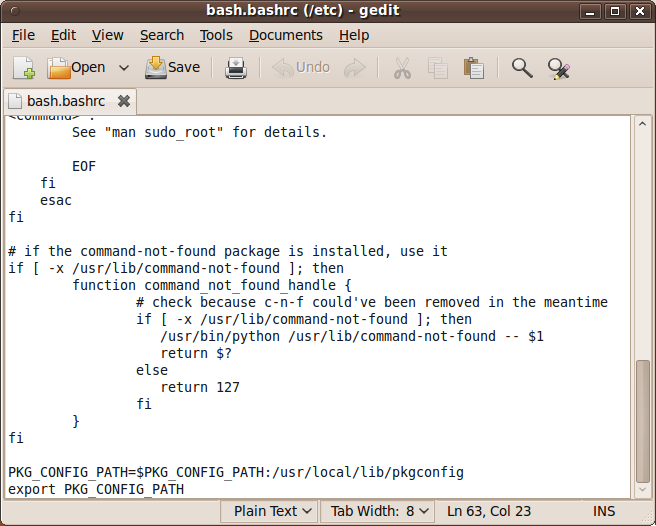
sudo gedit /etc/bash.bashrc

Add these two lines at the end of the file and save it:

PKG_CONFIG_PATH=$PKG_CONFIG_PATH:/usr/local/lib/pkgconfig
export PKG_CONFIG_PATH

Finally, close the console and open a new one, restart the computer or logout and then login again. OpenCV will not work correctly until you do this.

There is a final step to configure Python with OpenCV. You need to copy the file cv.so into the correct place. You can do that by just executing the following command:

sudo cp /usr/local/lib/python2.7/site-packages/cv.so /usr/local/lib/python2.7/dist-packages/cv.so

Now you have OpenCV 2.2 installed in your computer with Python and TBB support.

Let’s check some demos included in OpenCV.
First, let’s see some C demos:

cd ~/OpenCV-2.2.0/samples/c
chmod +x build_all.sh
./build_all.sh

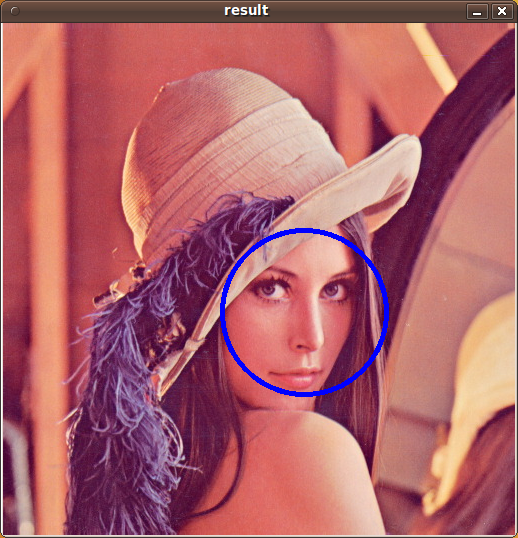
Some of the training data for object detection is stored in /usr/local/share/opencv/haarcascades. You need to tell OpenCV which training data to use. I will use one of the frontal face detectors available. Let’s find a face:

./facedetect --cascade="/usr/local/share/opencv/haarcascades/haarcascade_frontalface_alt.xml" --scale=1.5 lena.jpg

Note the scale parameter. It allows you to increase or decrease the size of the smallest object found in the image (faces in this case). Smaller numbers allows OpenCV to find smaller faces, which may lead to increasing the number of false detections. Also, the computation time needed gets larger when searching for smaller objects.

You can also detect smaller objects that are inside larger ones. For example you can search for eyes inside any detected face. You can do that with the nested-cascade parameter:

./facedetect --cascade="/usr/local/share/opencv/haarcascades/haarcascade_frontalface_alt.xml" --nested-cascade="/usr/local/share/opencv/haarcascades/haarcascade_eye.xml" --scale=1.5 lena.jpg


Feel free to experiment with other features like mouth or nose for example using the corresponding cascades provided in the haarcascades directory.

Now let’s check some C++ demos:

cd ~/OpenCV-2.2.0/samples/cpp
make

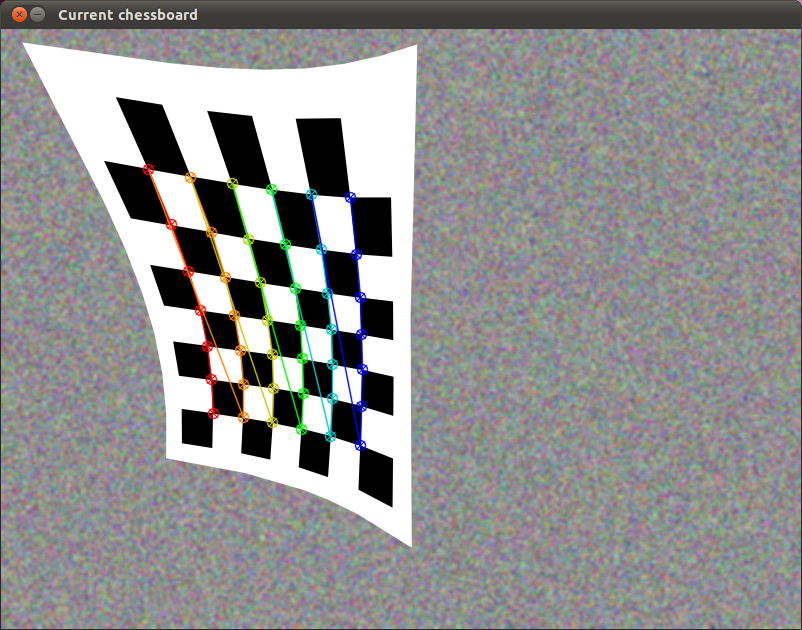
Now all the C++ demos are built in ~/OpenCV-2.2.0/bin. Let’s see a couple of them. For example, a simulated chessboard calibration:

~/OpenCV-2.2.0/bin/calibration_artificial


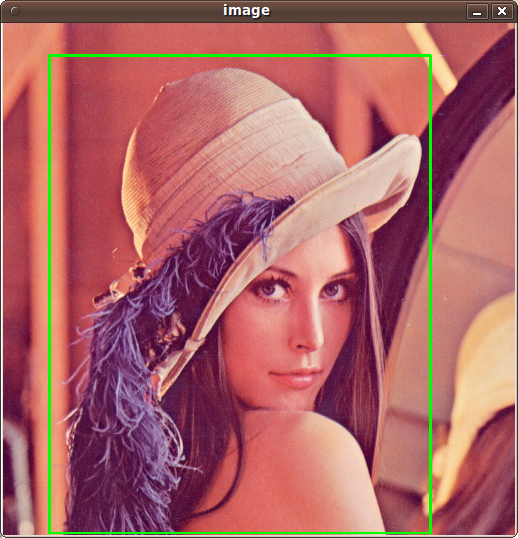
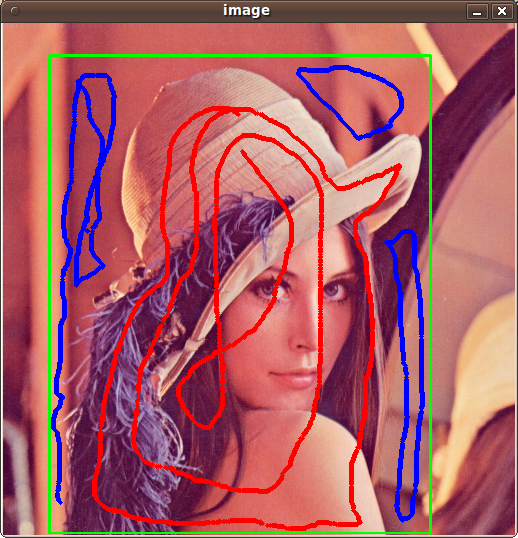
In OpenCV 2.2, the grabcut algorithm is provided as a C++ sample. This is a very nice segmentation algorithm that needs very little user input to segment the objects in the image. For using the demo, you need to select a rectangle of the area you want to segment. Then, hold the Control key and left click to select the background (in Blue). After that, hold the Shift key and left click to select the foreground (in Red). Then press the n key to generate the segmentation. You can press n again to continue to the next iteration of the algorithm.

~/OpenCV-2.2.0/bin/grabcut ~/OpenCV-2.2.0/samples/cpp/lena.jpg

This image shows the initial rectangle for defining the object that I want to segment.

Now I roughly set the foreground (red) and background (blue).

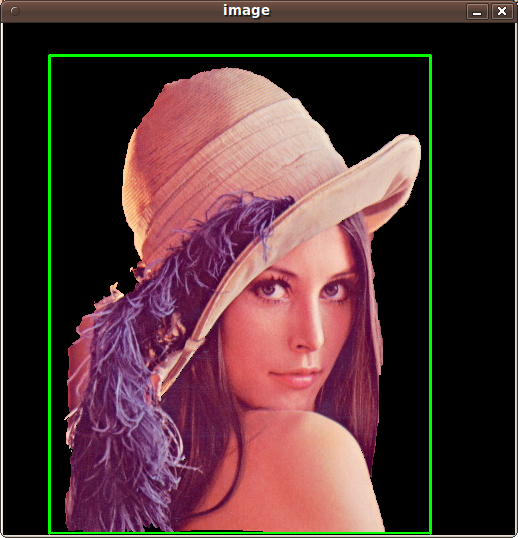
When you are ready, press the n key to run the grabcut algorithm. This image shows the result of the first iteration of the algorithm.

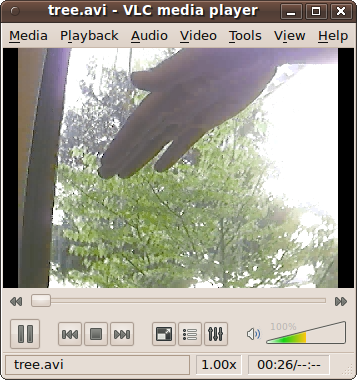
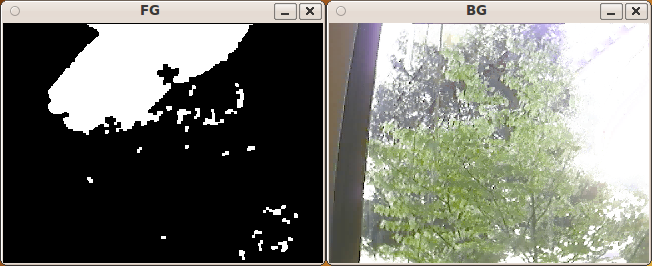
Now let’s see some background subtraction from a video. The original video shows a hand moving in front of some trees. OpenCV allows you to separate the foreground (hand) from the background (trees).

~/OpenCV-2.2.0/bin/bgfg_segm ~/OpenCV-2.2.0/samples/c/tree.avi

And finally, let’s see Python working with OpenCV:

cd ~/OpenCV-2.2.0/samples/python/

Let’s run the kmeans.py example. This script starts with randomly generated 2D points and then uses a clustering method called k-means. Each cluster is presented in a different color.

python kmeans.py

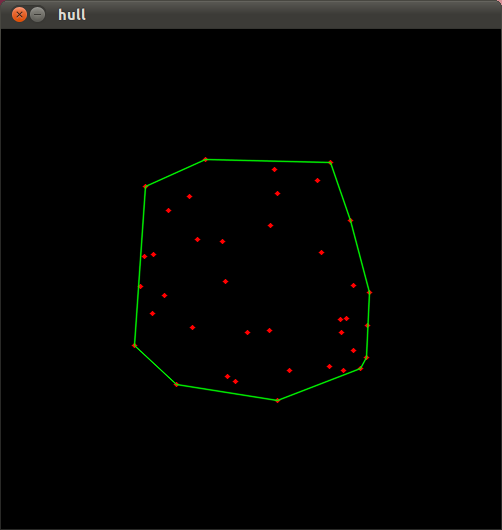
Now let’s see the convexhull.py demo. This algorithm basically calculates the smallest convex polygon that encompasses the data points.

python convexhull.py

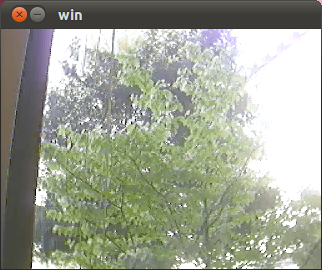
Python scripts can also be executed directly like the following example. This script reads a video file (../c/tree.avi) within pyhton and shows the first frame on screen:

./minidemo.py


Have fun with OpenCV in C, C++ or Python…

Posted in Computer Vision, Open Source, OpenCV.