In this post I will show you how to control your music from your cellphone. A nice thing about using your cellphone as a remote control is that you can change the music from another room, because of Bluetooth.
First, make sure that you can play mp3 and other restricted files by executing the following code.
sudo apt-get install ubuntu-restricted-extras
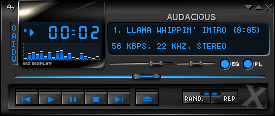
Now, let’s install a proper music player: audacious. It is a Winamp clone and it is one of the best music players available in Ubuntu. You can install it by executing the following code in the command line:
sudo apt-get install audacious
Now, you need to get the server software. I will be using a great program called anyremote. Install it by executing the following code:
sudo apt-get install anyremote
Now, let’s configure anyremote so that it can talk with audacious. Under the /usr/share/anyremote/cfg-data/Server-mode/ folder, there are many configuration files, one for each supported program. In this case, I will be using audacious.cfg since that is the program I want to control. For enabling the server to work with audacious, run the following code:
anyremote -f /usr/share/anyremote/cfg-data/Server-mode/audacious.cfg
Now the server is ready for you to send commands, although you have to start it manually every time. You can press Control + C for stopping the server. For automatically loading this server every time you log in, just go to the System menu, Preferences and finally Startup Applications. In there, create a new entry and put the previous command in the Command section. Name and Comment can be anything you want.
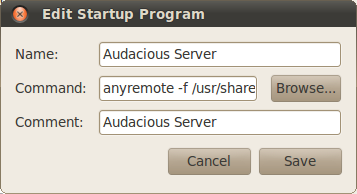
After saving this new entry, restart the computer. The server is now up and running. Now I will show you how to install the client in your cellphone.
First, you need to make sure that you have Bluetooth enabled in your computer. Some computers already come with Bluetooth integrated. If you do not have Bluetooth in your PC, do not worry. You can easily add Bluetooth capability to any computer by just buying a usb Bluetooth dongle. After connecting your dongle you will see a Bluetooth icon in your task bar.
Now you need to download the anyremote Java ME client for your cellphone. Go to https://anyremote.sourceforge.net/dload.html and under the Java client for WAP download section download any of the jar files depending on the screen size of your cellphone. For this post, I will be using the with 64×64 icon sets and 64×64 title icon one. You can download it to your Desktop by executing this code:
cd ~/Desktop
wget https://anyremote.sourceforge.net/anyRemote-48b.jar
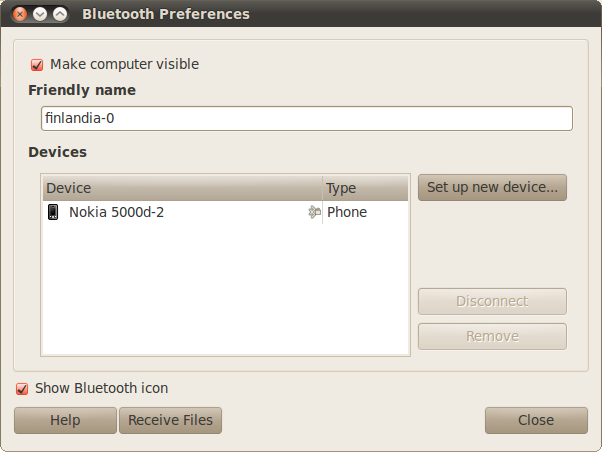
Now, you need to transfer the file to your phone. You can do that by clicking on the Bluetooth icon and selecting Set up new device and follow the instructions. Once your phone is set up, you click again in the Bluetooth icon, and under Devices your phone should be listed. Go there and click on Send Files and select the jar file you just downloaded. Once the program is in your phone, just run the application, search for servers and connect to your computer. Make sure that your PC is visible so that your phone can find it. You can set your computer visible by going into preferences when you click on the Bluetooth icon.
When you run the application in your phone, accept any confirmation dialog that appears and finally you will have a screen with several buttons such as play, next, previous, etc. Click on them and you will be in control of your music!.