Skip to content


Face detection using torch3vision library in Ubuntu

Torch3vision is a nice machine vision library. It implements some features and algorithms that are not present in other libraries (especially the ones based on illumination). In this post I will show you how to install it and how to detect faces with it. A nice thing about this library is that is it released under the BSD license, which makes it usable for commercial projects.

OK, let’s install this library. These instructions should work on any version of Ubuntu, but I tested them under Ubuntu 10.04.

Execute the following commands in the Terminal:

sudo apt-get install build-essential
cd
mkdir faceDetectors
cd faceDetectors
wget https://torch3vision.idiap.ch/sources/vision2.1/Torch3vision2.1.tgz
tar -xvzf Torch3vision2.1.tgz
rm Torch3vision2.1.tgz
cd Torch3vision2.1
cp Linux_i686.cfg.vision2.1 Linux_i686.cfg
cp Makefile_options_Linux.vision2.1 Makefile_options_Linux
cp vision2.1/Makefile_vision_Linux.example.basic vision2.1/Makefile_vision_Linux
make clean; make depend; make

That’s it, we can use the library now. Let’s build and run some examples:

Note: Ignore the “Try to compile Torch” messages when compiling the examples; everything is fine.

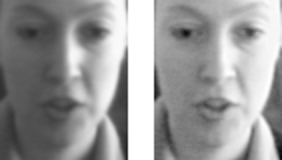
First, let’s apply a retinex algorithm. The idea here is to remove extreme shadows and highlights so that the objects in the scene appear under a more uniform illumination than the original.

cd vision2.1/examples/illumination
make
mv Linux_DBG_FLOAT/* .
./multiscaleRetinex ../data/1002.pgm ../data/result.pgm

The previous example runs multiscale retinex on the first image (../data/1002.pgm) and stores the result in the second (../data/result.pgm). You can see the results of this retinex algorithm in the following image:
Now, let’s detect some faces:

cd ../facedetect
make
mv Linux_DBG_FLOAT/* .
./mlpcascadescan ../data/9001_f_wm_s01_9001_en_1.ppm -minWsize 79 -draw -savepos

In this example, a cascade of multilayer perceptrons (MLP)  is used. The library also provides a face detector based on a cascade of Haar-like wavelets (similar to the ones in the OpenCV face detector). An image is created in the same directory if at least one face is detected. You can see an example of this procedure in the following image:
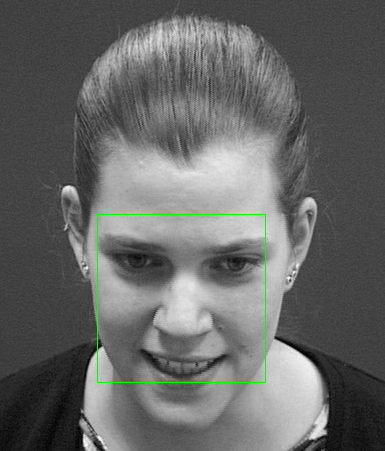
As you can see, the face was correctly detected. This library also provides many other examples for face detection and other features. Take a look at the other examples provided, it is definitely a nice library to have around.
Posted in Computer Vision, Open Source, Programming.


How to install Microsoft Windows 7 and Ubuntu 10.04 using a pendrive

Microsoft Windows 7 and Ubuntu 10.04 are both excellent operating systems. Each one of them has their own pros and cons. That’s why I like to install both of them in my laptop on a dual boot mode. That way I can choose which one I want to use every time I restart my computer.

The current trend in laptops, and netbooks, is that they do not include a disk drive (CD or DVD Drive). Although this is great for having a lighter laptop, it means that the installation CD for any OS is not an option. Well, you could use an external CD Drive, but what’s the fun of it anyway. I prefer using a pendrive. Most of you already have one laying around anyway. The good thing about using a pendrive is that there are no moving parts, and it produces a faster installation. Also, if you don’t use CDs, you will have less noise and no more coasters.

Requirements:

  • Pendrive with at least 3GB of memory. These(affiliate link) are excellent and have both, USB-C and USB-A connectors
  • ISO of Microsoft Windows 7. You can buy the ISO for Windows 7 from the Microsoft Store.
  • ISO of Ubuntu 10.04. You can download for free the ISO for Ubuntu 10.04 from their site.
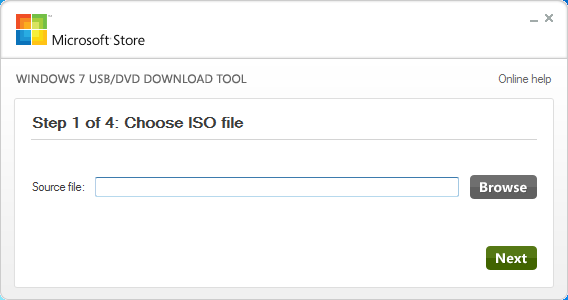
  • CD/DVD Download Tool. This is for transferring Windows 7 to your pendrive. Download it from here.
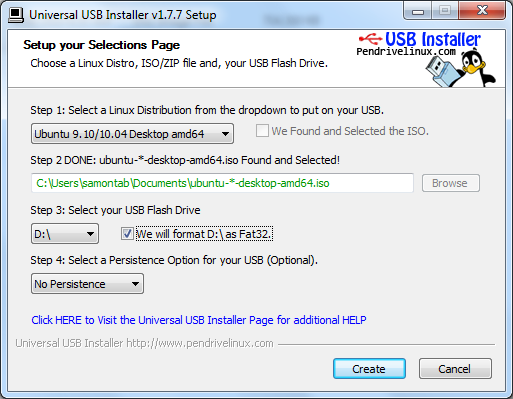
  • Universal USB Installer. This is for transferring Ubuntu 10.04 to your pendrive. Download it from pendrivelinux.com.

OK, now we are ready. First, you need to download the ISO for Windows 7 and the CD/DVD Download tool. Then, put your pendrive on your laptop (make sure you back up the data on your laptop and pendrive since everything will be lost), open the CD/DVD Download Tool from Microsoft and use it to transfer the ISO of Windows 7 to your pendrive.

This will take some time. Once it is finished, you need to restart your computer and boot from the USB drive. You may need to change the boot order from the system BIOS. From now on, you can just follow the installation process the same as with a normal disk.

Since we want a dual boot, under the Windows 7 installation, delete all existing partitions on the disk and create a new one with about half of the disk space, or as much space as desired. This will be the allocated space for Windows 7. Leave the rest of the drive as unallocated or free space. We will use that for Ubuntu 10.04 later.

Once you finish installing Windows 7, download the Universal USB Installer and the Ubuntu 10.04 ISO. Run the Universal USB Installer to copy the Ubuntu 10.04 ISO to the pendrive. Make sure the box for formatting the pendrive is checked. Click on Create and wait.

Once the Ubuntu 10.04 ISO is copied into the pendrive, restart the laptop and boot from the USB. The Ubuntu installer will show up. When asked about where to install Ubuntu, choose the option “Use Largest Continuous Free Space“. This will install Ubuntu on the free space we left before. Proceed as a regular Ubuntu installation.

Once it is finished installing Ubuntu, you will be able to choose which OS you want to use every time you restart your laptop.

Posted in Programming.