Skip to content


How to control the orientation of an application in Qt

By default, S60 applications choose the current orientation automatically based on how the user is holding the device. This is convenient in general, but in some cases the developer needs more control regarding the orientation of the displayed content. In this post I will show you how to override this behavior and set the preferred orientation for your application: portrait, landscape or automatic at run time.

The first thing that we need is to include a couple of libraries: cone, eikcore and avkon. This can be done by editing the Symbian specific part of the .pro file:

symbian {
TARGET.UID3 = 0xe9507491
# TARGET.CAPABILITY +=
TARGET.EPOCSTACKSIZE = 0x14000<
TARGET.EPOCHEAPSIZE = 0x020000 0x800000
# We need these libs to change the orientation
LIBS += -lcone \
-leikcore \
-lavkon
}

Now we have to include the specific headers wherever we want to change the orientation of the device:

//These are the headers needed for changing the orientation
#ifdef Q_OS_SYMBIAN
#include <eikenv.h>
#include <eikappui.h>
#include <aknenv.h>
#include <aknappui.h>
#endif

Now we can just call to this function and the orientation will be changed to portrait, no matter how the user holds the device:

#ifdef Q_OS_SYMBIAN
CAknAppUi* appUi = dynamic_cast<CAknAppUi*> (CEikonEnv::Static()->AppUi());
    TRAPD(error,
    if (appUi) {
        appUi->SetOrientationL(CAknAppUi::EAppUiOrientationPortrait);
    }
    )
#endif

You can do the same for Landscape or Automatic mode. Just change EAppUiOrientationPortrait to EAppUiOrientationLandscape or EAppUiOrientationAutomatic accordingly. Automatic is the default mode, that is, it will change the orientation depending on how the user holds the device.
Make sure that you do not remove the Symbian OS checks (#ifdef Q_OS_SYMBIAN) because these libraries will only be available for the Symbian device, and not for the simulator for example.
Feel free to download the source code of an example that I made for controlling the orientation in Qt.

Posted in Open Source, Programming.


How to easily sign a Nokia S60 unsigned application

Sometimes you try to install a cool application on your Nokia S60 phone but you can’t do it because it is an unsigned application, or the signature has expired. This is to keep your phone and personal information safe from evil software developers that want to harm your phone or steal personal information, among others.

Although, there are some cases where you trust the developer and want to install the unsigned software anyway. In this post I will show you how to sign it very easily (in less than 5 minutes).

The first step is to download and install a very useful software called SISContents.

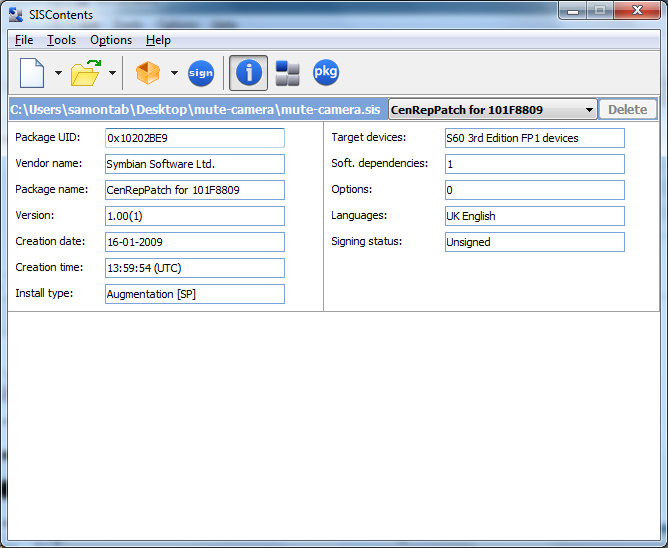
For this example, I will be using a very nice unsigned application that allows you to disable the camera sound when taking pictures. Once it is installed you only need to disable the warning tones in your profile (or enable and then disable them again) and your camera will be muted. You can download this cool unsigned application from here. Now you need to drag and drop the application you want to sign into SISContents. You will see all the details of the application.

The only thing that we need to do here is to change the Package UID so that it lies inside the Test Range defined by the Symbian Signed guys, which goes from 0xE0000000 to 0xEFFFFFFF. Basically, we want the UID to be an 8-digits hexadecimal number starting with E and the rest does not really matter. In this example, I just changed the original UID 0x10202BE9 to 0xE0202BE9. You can do the same, just change the first number of the UID to E). Then go to File->Save As and write a new file name to save the changes.

Now we need to sign the file you saved. The Symbian Signed guys offer a really easy to use Open Signed online service. You only need to provide the IMEI of your phone, your email and the application that you want to sign (the file you just saved). You can access their online signing service here. You can get your IMEI number easily by just typing *#06# in your phone.

You will then receive a confirmation email where you have to click on a link. Then, just wait and you will receive a second email with a download link for the signed application. Easy.

Posted in Programming.