In a previous post, I showed you how to listen on any device the music you have stored on a Symbian phone. In this post, I will teach you to do the opposite: control the music being played on your N900 with any device. The nice thing about this is that you can connect your N900 to your main speakers. That way, you will be using your Nokia N900 as a wireless home music system that is small, quiet and portable. After finishing this tutorial, you will also be able to connect to your N900 via SSH and FTP, manage your software repositories, compile applications, and setup scripts to be run at boot time.
First of all make sure that you back up all your N900 data. No kidding. We are going to make some changes that could possibly brick your phone. This means that you may need to re flash your firmware if anything goes wrong. If you are not OK with this, stop reading. I will not be held responsible for any problems you may encounter. You have been warned.
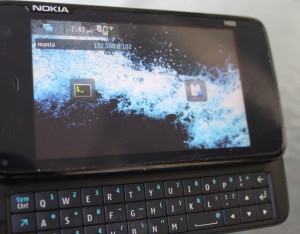 The N900 is an awesome device, it is a Linux computer in the form of a smartphone. Because of that, you can do pretty much anything you could do on a regular Linux computer and more, since you have all the extra features of a smartphone like sensors and a battery. One of the things a regular Linux computer can do is to play music with a great program called Music Player Daemon (MPD), which is the program we are going to install on the N900.
The first step is to configure the repositories. A repository is a place where programs are stored. You can have different repositories available on your system. Each repository that you have enabled in your system allows you to install different sets of programs. Note that on the N900, repositories are called catalogs.
To manage your repositories on your N900, go to the App. Manager and click on the menu on top. There, select Application Catalogs.
Here (maybe after waiting a little) you will see the current list of enabled and disabled catalogs. Disabled catalogs are not considered by the system, so all the applications you can install come from the enabled catalogs. Write down which catalogs are enabled and which ones are disabled as this is your original configuration and you may want to go back to it after we are finished.
Now, let’s add some catalogs. Click on the New button and fill in the information provided for the four following catalogs:
Maemo SDK: This catalog provides core system utilities that we will need to build programs.
Catalog Name: Maemo SDK
Web address: http://repository.maemo.org/
Distribution: fremantle/sdk
Components: free non-free
Disabled: Unchecked
Maemo tools: This catalog provides tools that are very useful, like nano or wget.
Catalog Name: Maemo tools
Web address: http://repository.maemo.org/
Distribution: fremantle/tools
Components: free non-free
Disabled: Unchecked
Maemo extras-testing: This catalog provides more applications than the ones in the default Maemo catalog (extras), although they are not as thoroughly tested.
Catalog Name: Maemo extras-testing
Web address: http://repository.maemo.org/extras-testing/
Distribution: fremantle
Components: free non-free
Disabled: Unchecked
Maemo extras-devel: This catalog contains many useful applications but some of them are in heavy development. This catalog should be disabled by default and enabled only temporarily to install specific applications. Make sure that you disable Maemo extras-devel when you add it.
Catalog Name: Maemo extras-devel
Web address: http://repository.maemo.org/extras-devel/
Distribution: fremantle
Components: free non-free
Disabled: Checked
These catalogs provide different applications that we will need later. Disable Maemo extras-devel and enable the other three.
Now exit the Application Catalogs screen. The N900 will automatically update the list of applications after you changed the repositories. If you didn’t see any update, click on the Update button just to be sure. Now click on Download->All to see the list of applications available to install. You should install the following apps:
openssh client and server
rootsh
sudser
Personal IP Address
When you install OpenSSH, you will be asked for a password. This is the root password, so keep it safe.
Now close the application manager and open the console (X Terminal). In there, you will setup a password for the default user, which is user. Write this:
sudo passwd user
And write a password for the user user, which is the default user (non root privileges). Close the console or write exit to exit.
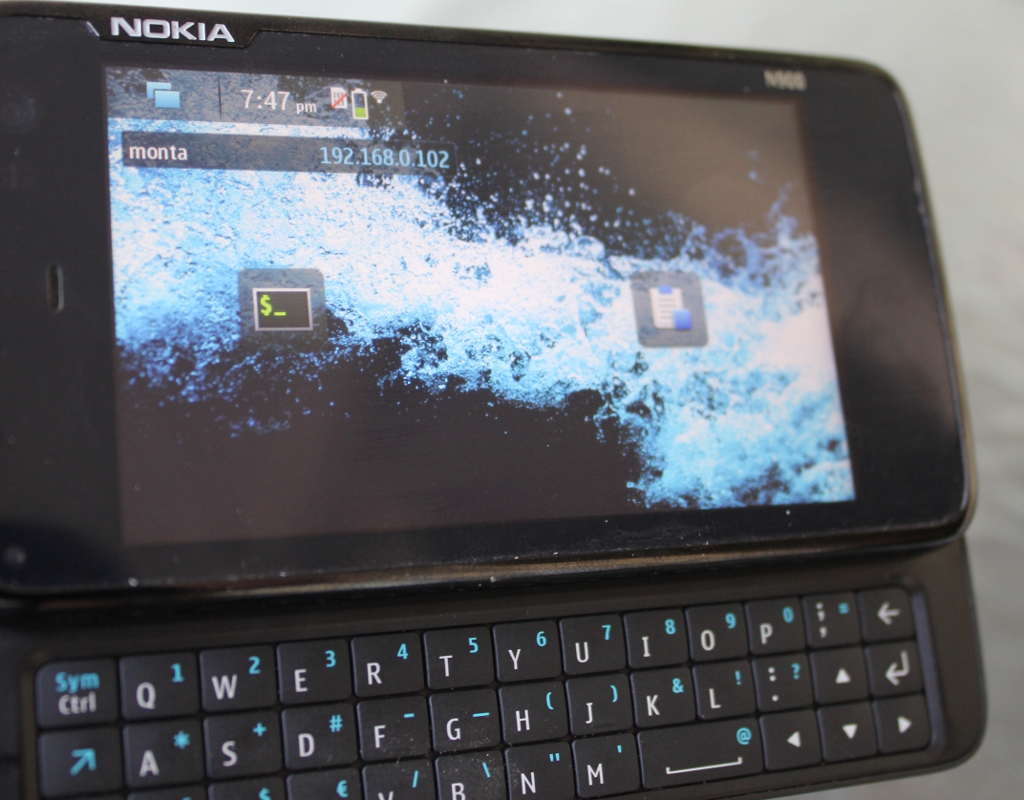
OK, on the desktop you now should be able to see your current IP address. You can use that IP to connect via SSH or FTP to your N900 with either root or user using the passwords you just set for them. If you don’t have Linux installed on your computer, you can use Filezilla for FTP and PuTTy for SSH. Make sure that you can connect to your N900 with the user account.
Now we will be working with the command line only, so I suggest you to connect from your computer via SSH (as user) for easier writing (or copy pasting). Make sure that the App. Manager is closed before continuing.
On the console, write the following:
sudo apt-get install build-essential wget grep-gnu libglibmm-2.4-dev nano mpc libao0 libaudiofile-dev libaudiofile0 libcurl3-dev libcurl3 libpulse-dev pulseaudio libavcodec-dev
It should install all these packages without a problem. When it is finished, go to the App. Manager, enable Maemo extras-devel and then close the App. Manager. Ignore any updates that are offered by your phone at this point.
Now go back to the console, and write the following (make sure that the App. Manager is closed before you do so):
sudo apt-get install libasound2-dev libmad0-dev libid3tag0-dev libflac-dev libflac++-dev
If it asks “Install these packages without verification?” Answer yes.
Once it is finished installing the packages, go to the App. Manager and disable all of the four repositories we used (Maemo SDK, Maemo Tools, Maemo extras-testing, Maemo extras-devel).
OK, now your N900 is ready to compile software. We are now going to get and compile Music Player Daemon (MPD).
Open the console (X Terminal) and write the following:
cd
mkdir tempdelme
cd tempdelme
wget http://downloads.sourceforge.net/project/musicpd/mpd/0.16.6/mpd-0.16.6.tar.gz
tar -xvzf mpd-0.16.6.tar.gz
cd mpd-0.16.6/
./configure
make
sudo make install
After some time, it should be ready. Now MPD is installed in /usr/local/bin/mpd. Check that everything is OK with this command (Thanks Martin for suggesting the –no-daemon option):
/usr/local/bin/mpd --version --no-daemon
It should display the formats it is able to play (i.e. mp3, flac, wav, etc). If you need more functionality than what is presented, install the extra needed libraries and then run ./configure; make; sudo make install again. Most people should be OK with the current settings.
Now that we have MPD installed, we need to configure it. Write this:
nano /home/user/.mpdconf
This will open a text editor. Write the following in there:
port                    "6600"
music_directory         "/home/user/MyDocs/music"
playlist_directory      "/home/user/.mpd/playlists"
db_file                 "/home/user/.mpd/mpd.db"
log_file                "/home/user/.mpd/mpd.log"

user "user"

bind_to_address "any"

audio_output {
        type            "alsa"
        name            "MPD ALSA"
        mixer_type      "software"
}
Make sure that all your music files and folders are inside the defined music_directory.
Now let’s create those directories
mkdir -p /home/user/.mpd/playlists
mkdir -p /home/user/MyDocs/music
And now put some music files in the music_directory that you defined previously. You can use FTP to easily transfer music from your PC to that folder in the N900. After you put some music, generate the MPD database:
sudo /usr/local/bin/mpd --create-db
Now we can start MPD with this:
sudo /usr/local/bin/mpd /home/user/.mpdconf
Test that everything is working:
mpc update
mpc add /
mpc play
If you hear music, then everything is great. You can stop the music with:
mpc stop
You can now delete the temporary files we used for the compilation:
cd
rm -r tempdelme
OK, so now MPD is installed on your N900. You can connect with any client to it. Actually, we just connected with one of them, mpc, a console client for MPD.
If you are using firefox, you can use Music Player Minion. If you have an IPod/IPhone/IPad/etc… you can use MPoD. There are many clients for MPD, virtually for any device that you may have at your house.
Enjoy playing with your cool new wireless home sound system.
The last (optional) step is to launch MPD automatically when you power up your phone. The N900 uses upstart to control the boot scripts, so let’s create an upstart script for MPD:
sudo nano /etc/event.d/mpd
In that file, write the following:
start on started hildon-desktop

script
exec /usr/local/bin/mpd /home/user/.mpdconf
end script

stop on starting shutdown
That’s it. Reboot your phone and MPD should be running. You can check it by using the same music test from before, or directly looking at the process:
ps aux | grep mpd
If it says something like this:
1630 user     46276 S    /usr/local/bin/mpd /home/user/.mpdconf
1642 user      2088 S    grep mpd
It means that MPD is running. If on the other hand only the second line appears, it means it is not running.
You can close MPD by killing the process like this:
killall mpd
Finally, note that depending on your battery saving settings your N900 may disable wifi connections initiated from outside (like your SSH or FTP connections) after some inactivity time. You can make sure that the wifi connection keeps open by just pinging the router:
sudo ping 192.168.0.1
Enjoy.